Canva to Print: How to Make Sure Your Designs Print Correctly

Designing in Canva is one of the easiest ways to create flyers, business cards, and posters—especially if you are a small business owner or community organizer.
But one of the most common frustrations people run into when taking their DIY designs to a professional printer is this:
"It looked great on my screen… so why does it print differently?"
The good news is that most print problems are entirely preventable once you know what to look for. Here is a straightforward guide to making sure your Canva designs print cleanly, professionally, and exactly how you envisioned.
1. Start With the Exact Size
Before you drag and drop a single graphic, make sure your Canva canvas is set to the correct dimensions. Starting with the wrong size and trying to resize it later is the fastest way to end up with stretched logos, blurry photos, and awkward cropping.
Here is a quick reference for common print sizes:
| Print Type | Standard Dimensions |
|---|---|
| Business Cards | 3.5" x 2" |
| Standard Flyers | 8.5" x 11" |
| Tri-fold Brochures | 8.5" x 11" |
| Large Posters | 18" x 24" |
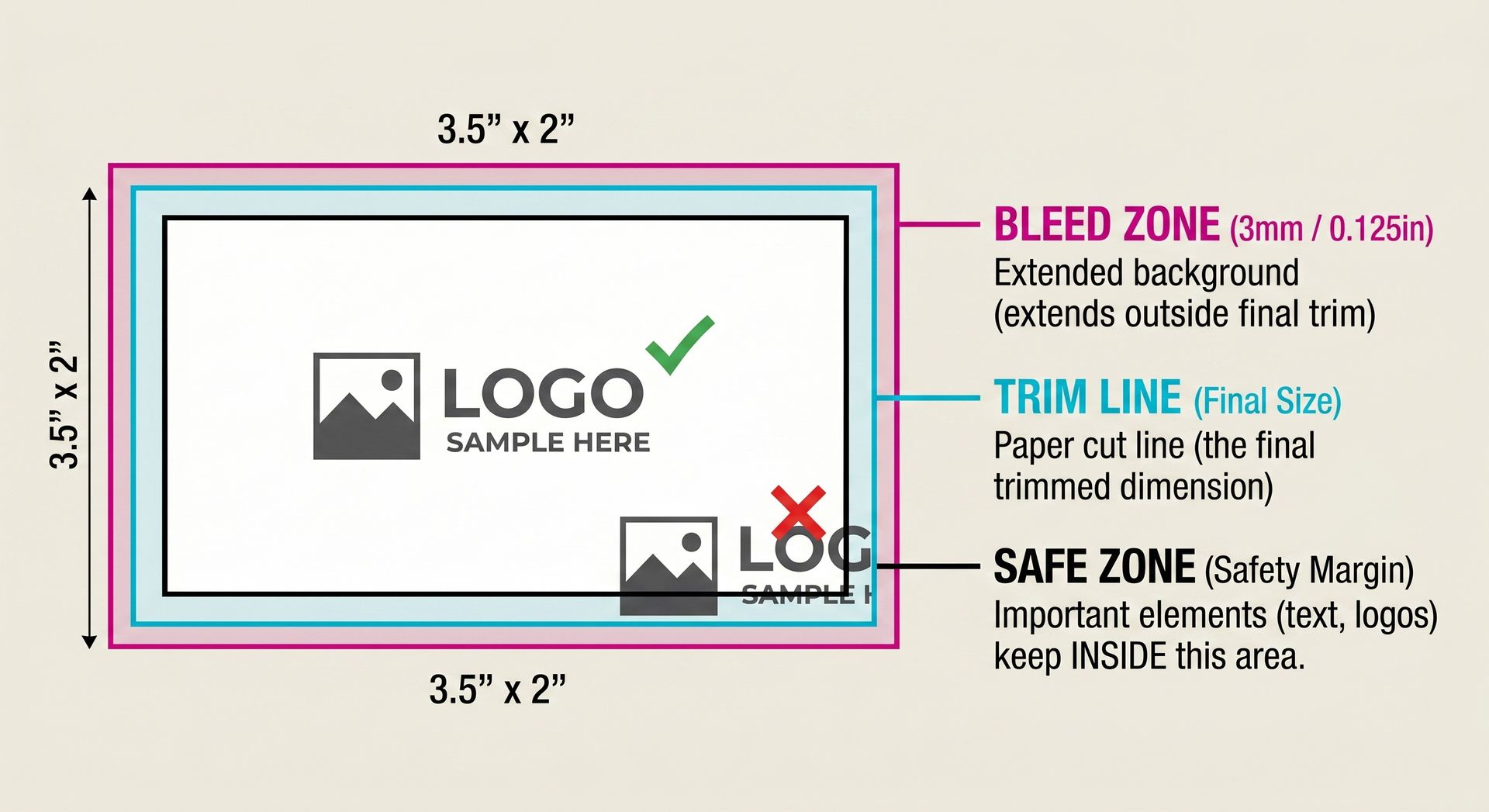
2. Understand and Add "Bleed"
"Bleed" is one of the most important printing concepts, yet it is the number one thing DIY designers miss.
When printers cut your design down to its final size, the blade can shift by a fraction of a millimeter. Bleed is simply the extra background color or imagery that extends past the final cut line. When the paper is trimmed, that extra bit gets chopped off.
Without bleed, that tiny blade shift will leave thin, uneven white borders around the edges of your final print. If your design has colors or images that go all the way to the edge of the paper, you must include bleed.

3. Respect the Safety Margin
Just like you need background colors to bleed off the edge, you need your important details to stay far away from it.
Even with bleed enabled, you never want vital information sitting directly on the trim line. Keep these elements safely tucked inside the design:
- Phone numbers
- Logos
- Physical addresses
- QR codes
- Important text blocks
Leaving a healthy safety margin prevents your contact info from accidentally getting trimmed off during the cutting process.
4. Use High-Resolution Images
Your smartphone or laptop screen is incredibly forgiving; professional printing presses are not. Low-resolution images might look perfectly fine on a digital screen, but they will look terrible on paper.
Print reveals every pixel and flaw. To ensure crisp results:
- Always use original, full-size image files.
- Never use screenshots.
- Avoid heavily compressed images sent through text messages or social media.
If a photo looks even slightly blurry or pixelated when you zoom in on your screen, you need to find a higher-quality replacement before printing.
5. RGB vs. CMYK: Why Colors Shift
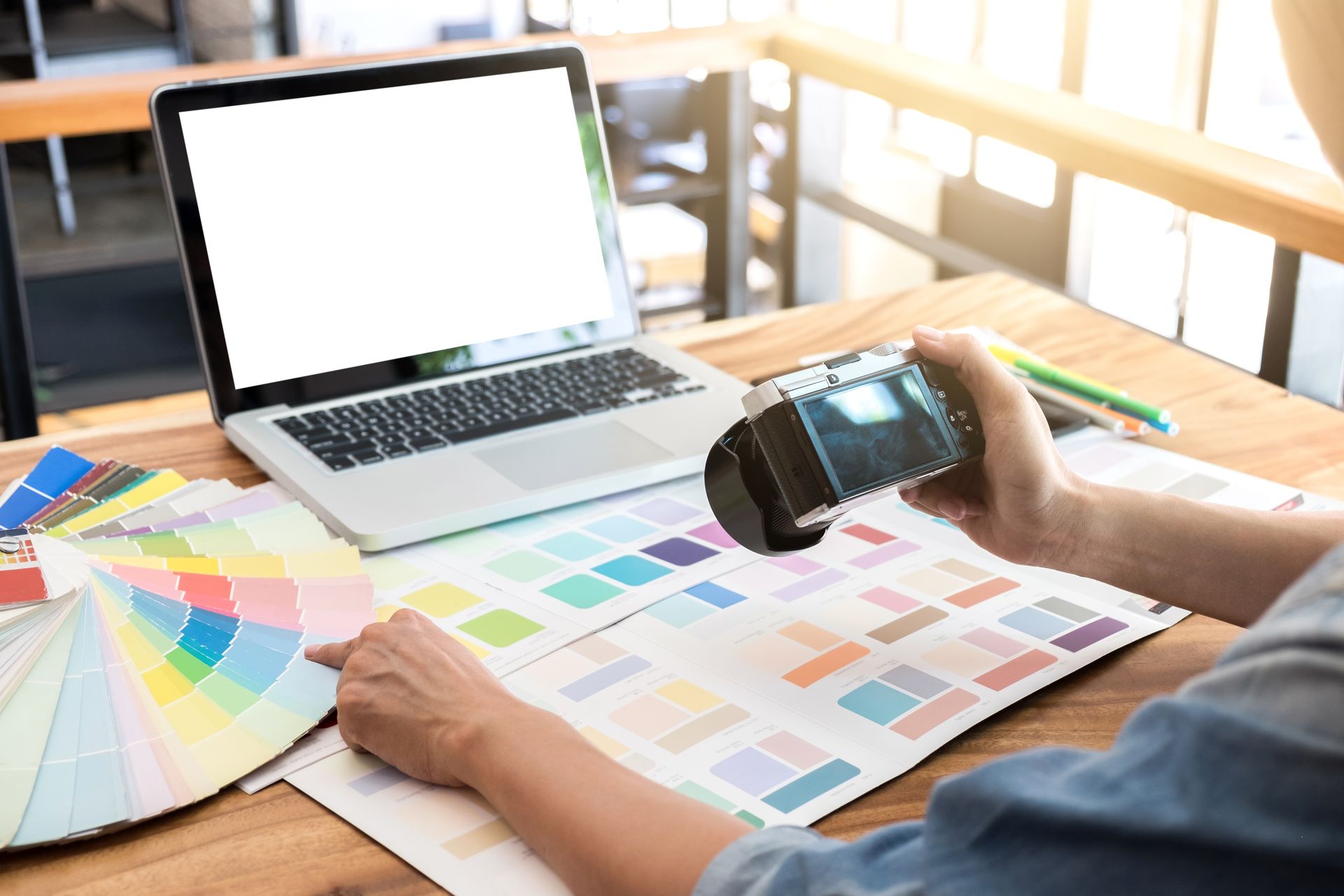
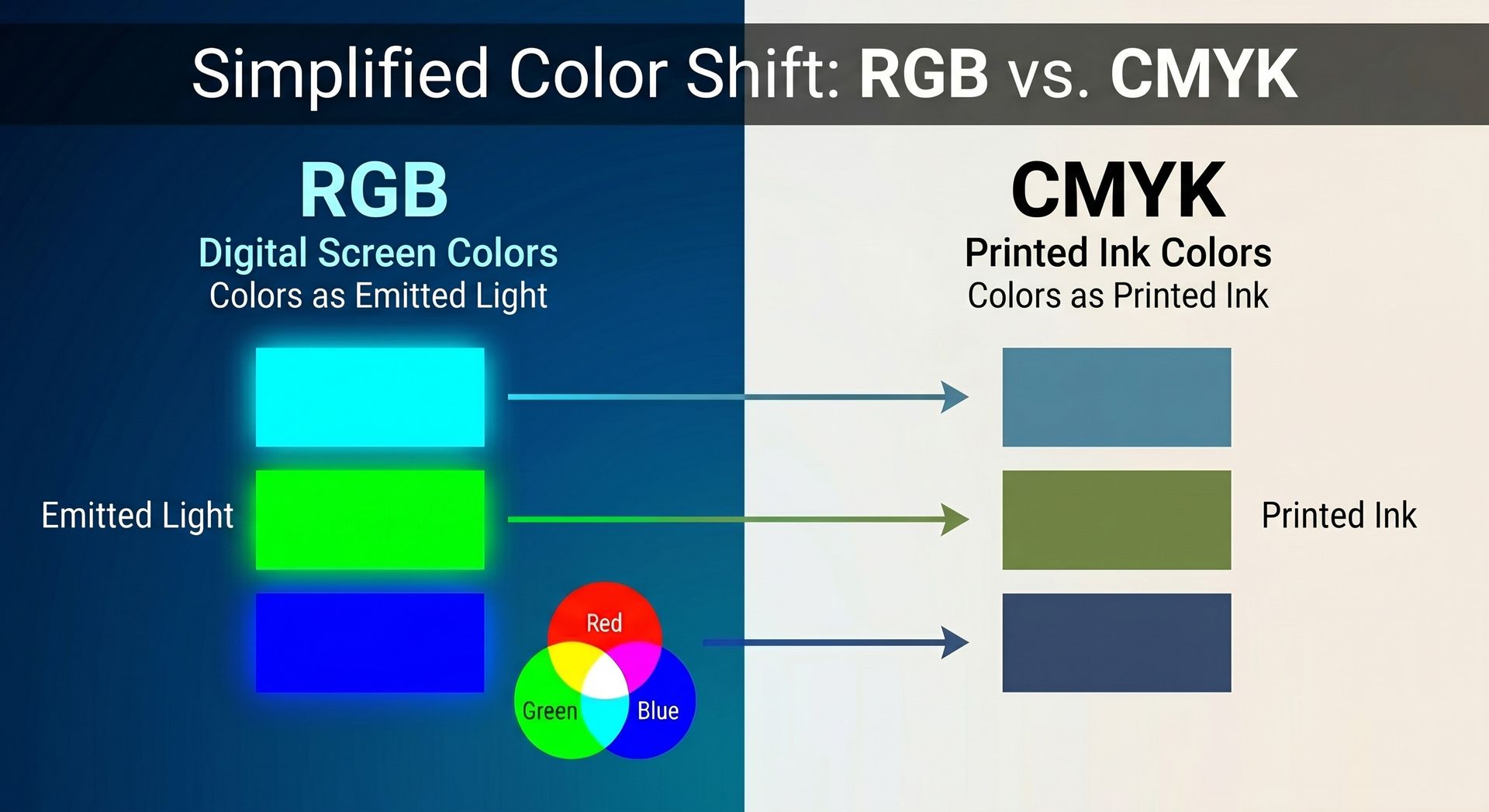
One of the biggest surprises for Canva users is when their printed colors look different than what they saw on their monitor. This happens because screens and printers speak two completely different color languages.
| Screen Colors (RGB) | Print Colors (CMYK) |
|---|---|
| Emits light | Absorbs light (Ink) |
| Can display vivid, glowing neon colors | Produces matte, grounded, realistic colors |
Because of this difference, some colors—especially bright neon greens, vivid blues, and electric oranges—will naturally print darker or slightly muted compared to how they look on your glowing laptop screen. This isn't a printer error; it is simply the reality of translating light into ink.

6. Export Your Canva File the Right Way
When your design is perfect, how you save it dictates how well it will print. Exporting correctly makes all the difference for the print shop.
When downloading your file from Canva, always select these settings:
- File Type: PDF Print (Not JPG or PNG)
- Check the box for: Crop marks and bleed
This generates a high-quality, professional-grade file that tells the print shop exactly where to cut your design.
The Final Pre-Print Checklist
Before sending your file off to the printer, take two minutes to review this final checklist. Catching a mistake now saves you the cost of a reprint later.
- Is all the spelling correct?
- Are the phone numbers, dates, and addresses perfectly accurate?
- Do the images look sharp when zoomed in?
- Is the bleed enabled and extending past the edges?
- Is all important text safely inside the margins?
Don’t Be Afraid to Ask Questions
Commercial printing can feel confusing if you are new to it. Terms like bleed, resolution, and CMYK color profiles aren't exactly common knowledge.
The good news is that most file setup issues are incredibly easy to fix before ink ever hits paper. If you’re ever unsure whether your Canva file is truly print-ready, Trailhead Printing is always here to help. We are happy to review your file, recommend the perfect paper types, and catch setup problems early so your printed materials look just as good in person as they did on your screen.
Frequently Asked questions
Why does my printed Canva design have uneven white borders?
This happens when your design lacks a "bleed." A bleed extends your background color or images slightly past the final cut line. Without it, tiny, natural shifts during the paper cutting process will leave a thin white edge around your print.
Why do my Canva colors look dull or dark when printed?
Screens display colors using light (RGB), which can show glowing, neon, and incredibly bright tones. Printers use ink (CMYK), which absorbs light and produces grounded, matte colors. Because of this, it is completely normal for digital colors to look slightly muted once they are actually printed on paper.
How exactly should I save my Canva file for a professional print shop?
When you are ready to download your design, click 'Share' then 'Download'. Change the file type to PDF Print and make sure you check the box that says Crop marks and bleed. This generates the high-quality file format professional print shops need.
Can I use screenshots or phone photos in my Canva print designs?
We highly recommend against using screenshots, as they are very low-resolution and will look pixelated or blurry when printed. Phone photos can work, but always make sure to upload the original, full-size file rather than a compressed version saved from social media or a text message.
Recent Posts